
The Human Behavior SDK allows you to record user sessions and track behavior analytics in web applications for use with the Human Behavior platform.Documentation Index
Fetch the complete documentation index at: https://docs.humanbehavior.co/llms.txt
Use this file to discover all available pages before exploring further.
Quickstart
Show How to get your API Key
Show How to get your API Key
How to find your Public API Key:
Flow: Project Home → Integrations → Human Behavior SDK → Kebab Menu → Configuration → Public API Key
Flow: Project Home → Integrations → Human Behavior SDK → Kebab Menu → Configuration → Public API Key
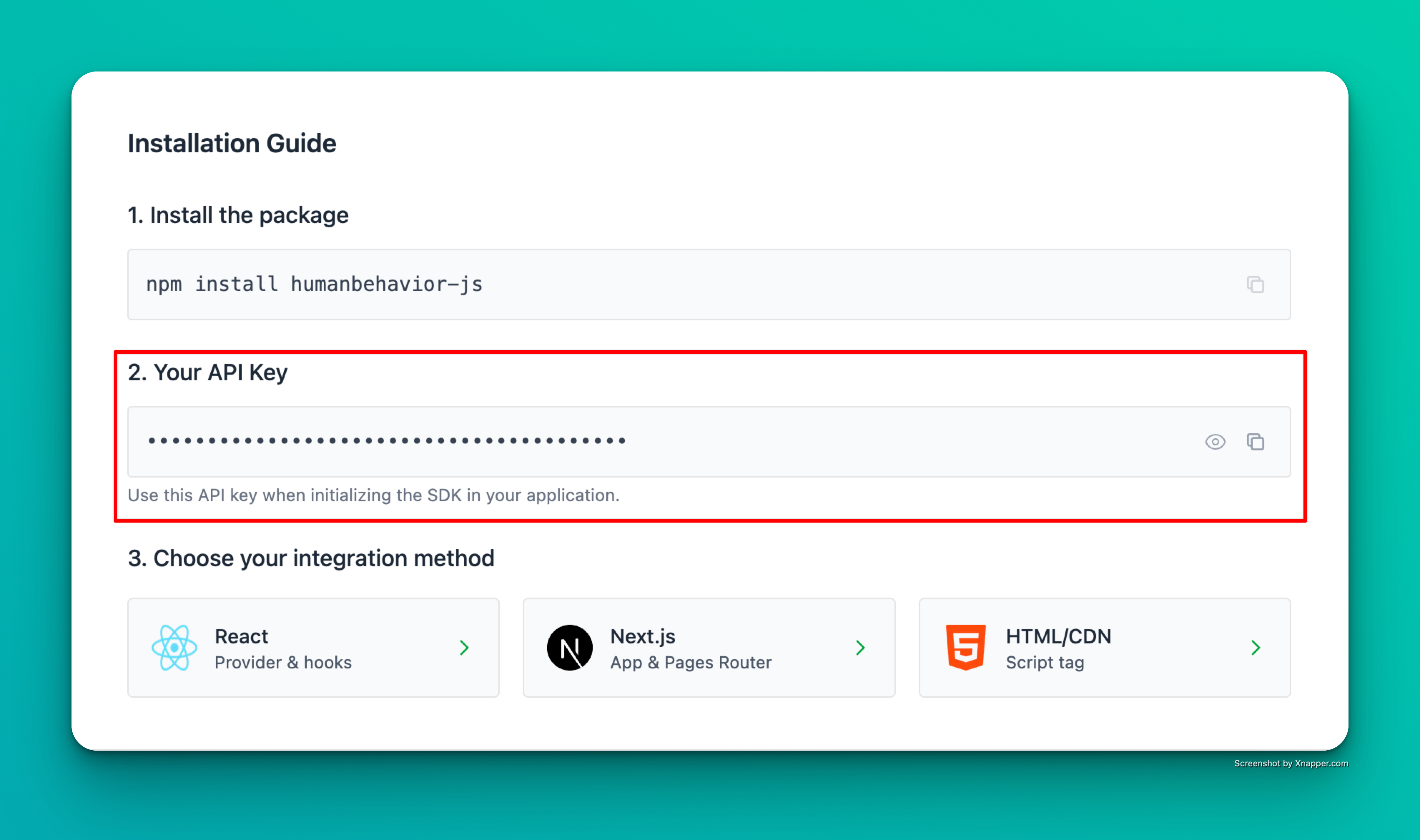
Example screenshot – your actual API key will be different.
Option 1: Auto-Installation Wizard (beta)
The easiest way to get started is using our auto-installation wizard:
- Ask for your API key (if not provided as an argument)
- Let you select your framework from the supported options:
- React
- Next.js
- Vue
- Angular
- Svelte
- Nuxt.js
- Remix
- Astro
- Gatsby
- Vanilla JS/TS
- Automatically install and configure the SDK for your project:
- Install the
humanbehavior-jspackage - Add framework-specific integration code
- Configure environment variables
- Set up proper initialization
- Install the
- Next.js: App Router (13+) vs Pages Router (12 and earlier)
- Angular: Standalone components (17+) vs NgModule (pre-17)
- Svelte: SvelteKit vs regular Svelte
- Bundlers: Vite, Webpack, esbuild, rollup
- Package Managers: npm, yarn, pnpm
The wizard supports React, Next.js, Vue, Angular, Svelte, Nuxt, Remix, Astro, Gatsby, and vanilla JS/TS projects.
Option 2: Manual Setup
If you prefer manual setup or the wizard doesn’t work for your project, follow the steps below.If you are using a framework such as React, NextJS, or Vite, we recommend using one of our Framework Guides instead of the manual quickstart.
Security Best Practice: Store your API key in environment variables rather than hardcoding it in your source code. This prevents accidental exposure of your key in version control.
Step 1: Install the Tracker
Option 1: CDN
Add this to the top of your file.Option 2: Package Manager
Install usingnpm, yarn, or your package manager of choice.
Step 2: Add the tracker to your project
Simple HTML Example
Here is a simple HTML website using the CDN version:That’s it! The SDK now automatically tracks user interactions, navigation, and console events. Everything past here is optional.
Identify users (Optional)
For the best user tracking experience, identify users client-side after successful authentication:Browser Compatibility
The SDK supports all modern browsers:| Browser | Version |
|---|---|
| Chrome | 60+ |
| Firefox | 55+ |
| Safari | 12+ |
| Edge | 79+ |
Best Practice:Always initialize the tracker in the
<head> section, before any user interaction can occur. This ensures all events—including those on page load—are captured.Version: This documentation covers HumanBehavior SDK version 0.4.5
Data Redaction
The SDK includes comprehensive data redaction to protect sensitive information:Two Redaction Modes
- Privacy-First: Everything masked by default, selectively unredact fields
- Visibility-First: Everything visible by default, selectively redact fields
Flexible Field Selection
- Programmatic: Configure via
redactionStrategyoptions - Markup-Driven: Add
data-hb-redact="true"to any input - Runtime Control: Change settings after initialization
Key Features
- 1:1 Character Masking: Shows asterisks matching input length
- All Input Types: Works with text, email, password, number, etc.
- Always Protected: Password fields cannot be unredacted
- Real-time: Masks data as users type
What Happens Next?
Once you’ve completed the setup:- Automatic Session Recording: The SDK automatically captures user interactions using rrweb
- Automatic Event Tracking: Button clicks, link clicks, and form submissions are tracked automatically
- Session Persistence: Sessions persist across page reloads for 15 minutes
- Navigation Tracking: SPA navigation and URL changes are automatically tracked
- Console Tracking: Console logs, warnings, and errors are captured
- Data Processing: Events are processed and sent to your dashboard
- User Identification: Users are identified client-side after successful authentication
- Analytics: View session recordings and analytics in your HumanBehavior dashboard